Py-feat Live
Py-feat Live is a native desktop app
that puts the full power of Py-Feat behind a graphical interface — no code
required. Built with Tauri, it runs natively on macOS,
Windows, and Linux, and bundles the same models you'd use from Python (both
Detectorv1 and the new Detectorv2 (v2.5) multitask model), so you get the
complete Py-Feat feature set in one app. It has three workspaces:
- Live — real-time facial-expression analysis straight from your webcam, with the mesh / AU / emotion / gaze overlays locked to the exact frame detection ran on.
- Analyze — batch-process recorded videos and images, writing a full
native-schema
FexCSV per job. - Viewer — scrub recorded detections frame by frame, plot any variable over time, and cluster / label face identities.
Download
The button always points at the latest release (signed macOS .dmg; more platforms to come) — or run it from source, see the repo README. The first launch downloads model weights (a few minutes; cached afterward). See the changelog for what's new in each release.
Detectors
| Detector | What it runs |
|---|---|
| Detectorv2 (default) | The v2.5 multitask model — 20 AUs, 7 emotions, valence/arousal, a 478-point face mesh, 6-DoF head pose, gaze, 52 ARKit/MediaPipe blendshapes, and ArcFace/FaceNet identity, all from a single forward pass. |
| Detectorv1 | The classic Py-Feat detector (RetinaFace / img2pose face + landmark / AU / emotion models). |
Live
Real-time detection on your webcam. Pick a camera from the dropdown, hit Start, and Py-feat Live runs the detector on each frame and paints the overlay on the exact frame detection ran on, so the landmarks and mesh never lag the video. Pause freezes detection while the camera stays on; Stop releases the camera.
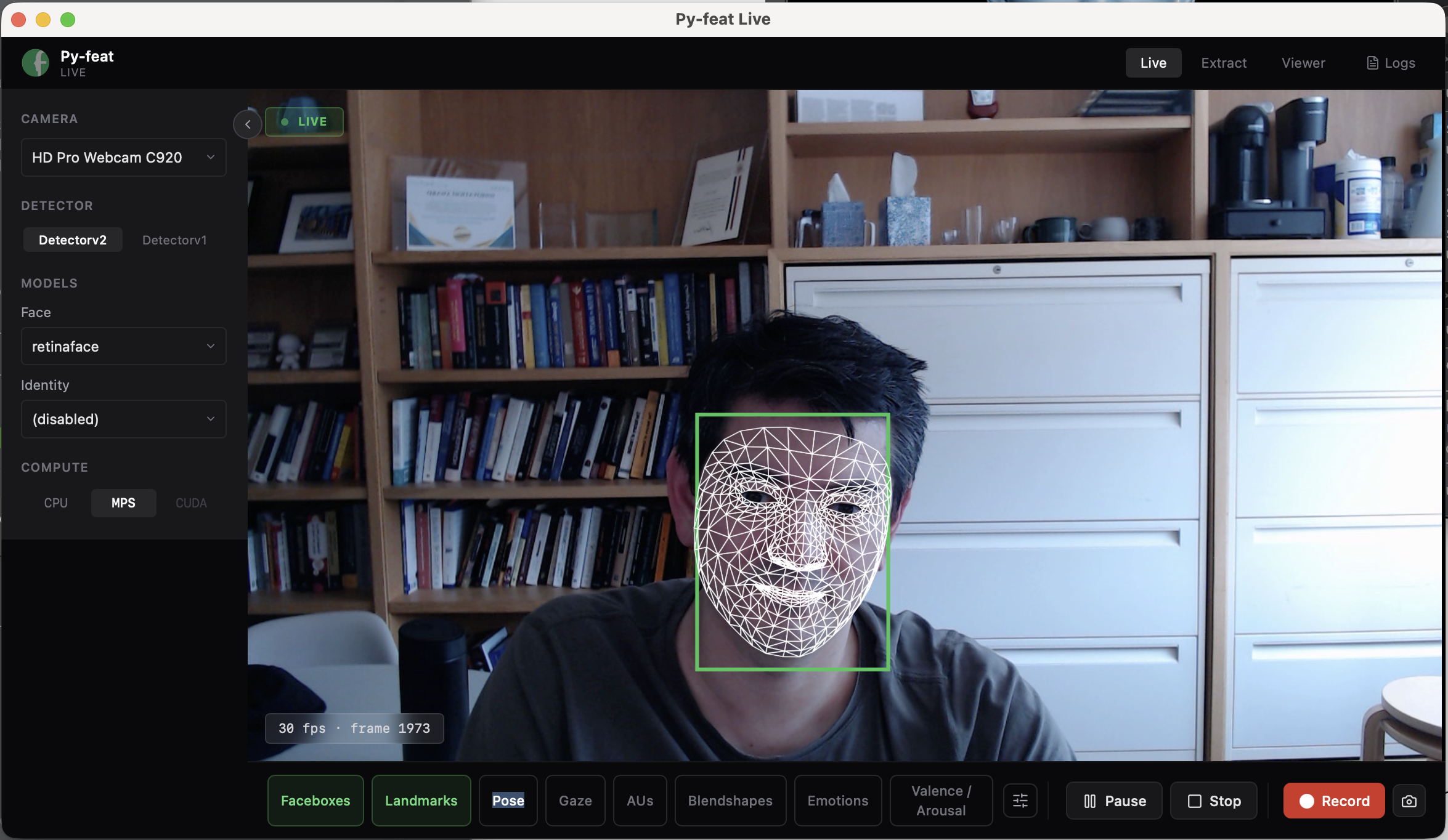
Each detected face gets its own overlay panels:
- Emotion bars — one bar per emotion (neutral, happiness, sadness, anger, surprise, fear, disgust).
- Valence / Arousal — a 2-D plot (dot color encodes valence, halo encodes arousal); Detectorv2 only.
- Pose — a small cube plus a Pitch / Yaw / Roll readout in degrees that
tracks the head as it turns (the
P · Y · Rnumbers under the face).
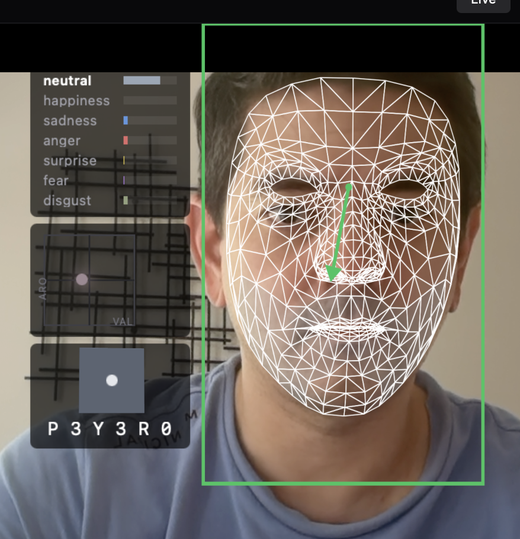
A row of overlay chips toggles each layer on or off — Faceboxes, Landmarks, Pose, Gaze, AUs, Emotions, and Valence/Arousal. A chip is greyed out when its model is disabled in the current config. Status badges show LIVE / PAUSED (top-left) and REC (top-right) while recording, with a live FPS + frame counter in the corner.
Recording. Record writes a clean (un-overlaid) video plus a per-frame
Fex CSV to disk so you can re-open the session later in the Viewer; Capture
saves the current frame as a PNG. (Overlays in Live are drawn on the client, so
the recorded video stays clean — you re-apply overlays in the Viewer.)
Settings & customization
Open the overlay-settings panel (gear icon) to control exactly how each layer is drawn. Every overlay has its own enable checkbox plus style controls:
- Faceboxes — color, opacity, line width.
- Landmarks — style (
mesh,lines, orpoints), color, opacity, size. - Pose — axis-length scale (axes are fixed X = red, Y = green, Z = blue).
- Gaze — color, opacity, line size.
- AUs — mode (
HeatmaporPoints), colormap, opacity, gamma, and dot size. - Emotions — color, opacity, font size.
- Valence / Arousal — Detectorv2 only.
Two stabilization options live in the same panel:
- Stabilize overlays — an exponential moving average over landmarks, boxes, and readouts, with a Strength slider (0–100%); higher is smoother but lags the video more.
- Fast tracking (Detectorv2, Live only) — skips face detection between frames for higher FPS.
In the Live sidebar you can also switch the detector (Detectorv2 / Detectorv1) and, per stage, the face / pose / landmark / AU / emotion / identity / gaze model, and choose the compute device (CPU / MPS / CUDA — unavailable devices are greyed out). Switching detector resets the per-stage models to sensible defaults for that detector.
Analyze (Extract)
Batch-process recorded videos and images. Drag files into the queue (or use the file picker); each one is added with the active preset — the default runs Detectorv2. Open a file's config to set:
- Skip frames (1–100) — process every N-th frame.
- Clip start / end (seconds) — analyze only a sub-range.
- Track identities — group faces across frames (on by default).
You can Apply changes to one file or to every queued file at once. Set the compute device (CPU / MPS / CUDA) and batch size (1–64) in the footer, then Run queue; Pause holds the queue and Stop cancels the current job. Each row shows queued / running / done / failed status and a progress bar.
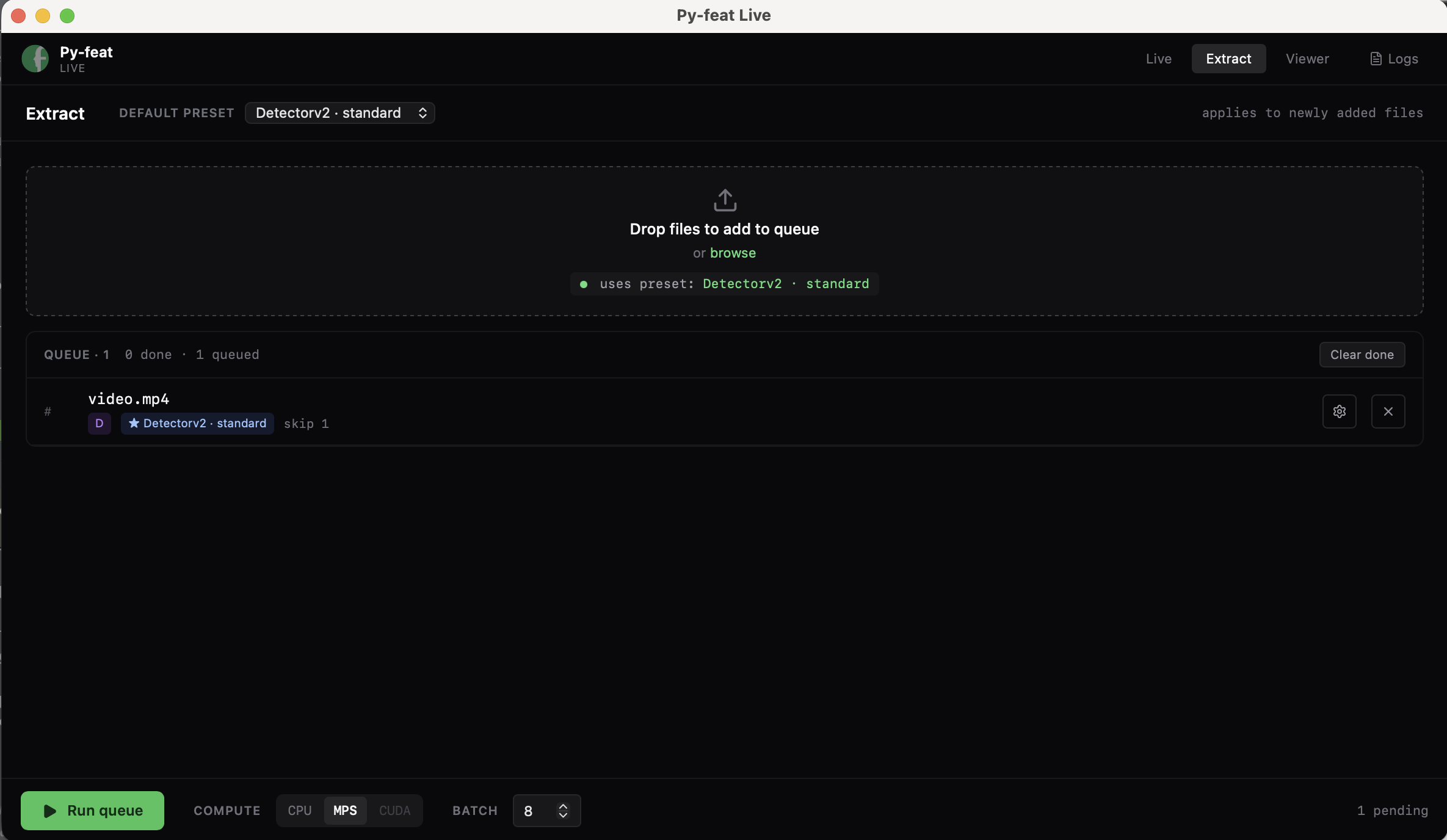
Every finished job writes a session folder containing a full native-schema
fex.csv, the source video.mp4, and a metadata.json. Click Open in
Viewer on a completed row to inspect it.
Viewer
Open a recorded session (from Live or Analyze) and scrub it frame by frame. The left pane lists sessions (with search) and annotations; the same overlays as Live render over the video, and an eye icon switches to an overlays-only view that hides the video underneath.
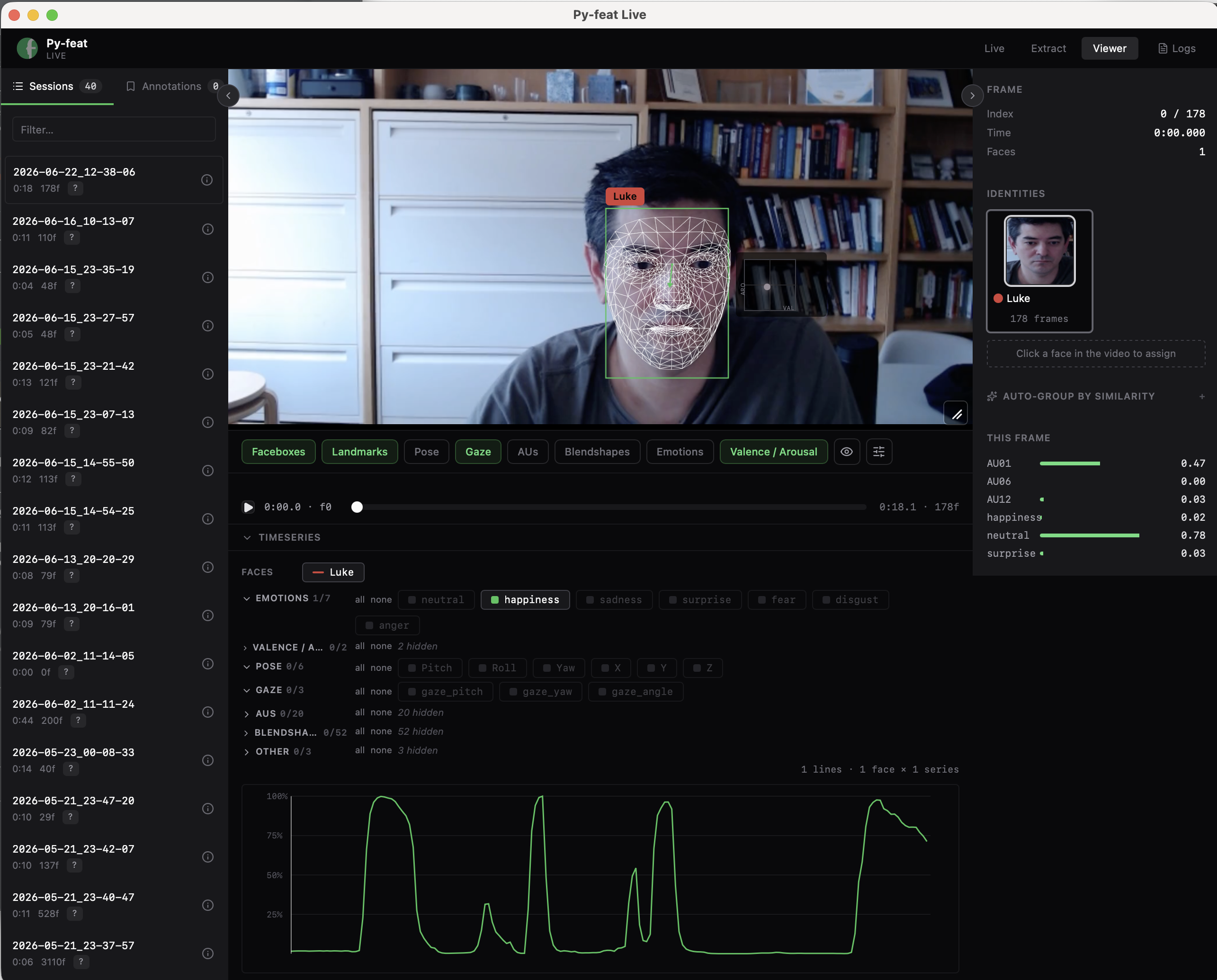
Scrub bar. Click or drag the track to seek; the readout shows mm:ss · frame.
An annotation lane above the track shows exclude ranges (red), event
markers (blue), and custom markers (purple). Shift-drag the track to
create an exclude range. Hotkeys: Space play/pause, E add an event at the
playhead, C add a custom marker.
Timeseries. A collapsible drawer plots any detected variable over time. Series are organized into groups — Emotions, Valence/Arousal, Pose, Gaze, AUs, Blendshapes, Other — so the 80-plus v2.5 columns stay manageable; click a group header to toggle the whole set or individual chips to add single series. When you've labeled identities, each identity is drawn with its own line dash and each series with its own color.
Inspector. The right sidebar shows the current frame index / timecode / face count and a small bar chart of the selected identity's values at the current frame.
Identities & face labeling
Py-feat Live tracks who's who across a recording. On load it auto-initializes identities (one per detected face, or per ArcFace cluster if embeddings were computed). From there you can:
- Assign — click a face in the video to assign it to an existing identity or create a new one (name + auto-assigned color).
- Rename — click an identity's name to edit it inline.
- Merge — drag one identity card onto another to merge them (the target keeps its name and color and absorbs the other's assignments).
- Re-cluster — run automatic grouping from ArcFace embeddings with a similarity-threshold slider (default 0.8); the app surfaces a similarity matrix and merge suggestions for near-duplicate identities.
Each identity shows a face thumbnail; selecting identities filters and styles the timeseries plot above.
Py-feat Live is open source: cosanlab/pyfeat-live.
License
The application code is MIT-licensed. Downloaded detectors and optional model assets have separate terms. See the PyFeat-Live licensing notice and the v1/v2 model and dataset guide.